
Two-factor authentication (2FA) is set up the first time you log in or register, on the "Secure your account" screen.
If you skip it, you can set it up later from the settings page. If your organisation requires 2FA, the skip option won't appear at all.
Install Microsoft Authenticator from the App Store or Google Play before you start.
On a computer
- Log in as normal. On the "Secure your account" screen, select Set up 2FA
- A QR code will appear under "Set up two-factor authentication"
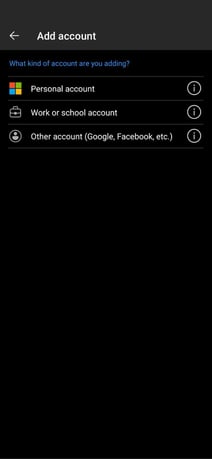
- On your phone, open Microsoft Authenticator, tap +, then Other account (Google, Facebook, etc.)
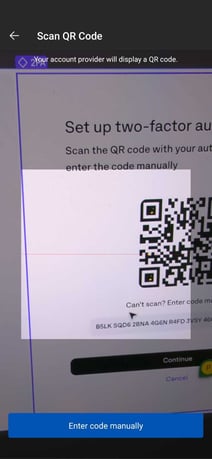
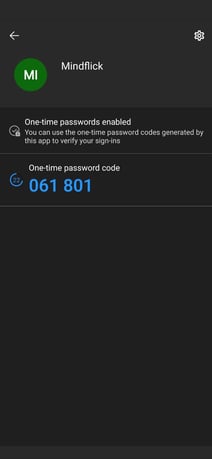
- Point your phone's camera at the QR code on your screen. The app adds the account and starts showing a 6-digit code
- Back on your computer, select Continue
- Enter the 6-digit code from your phone into the six boxes on the "Verify 2FA setup" screen
- Select Verify
Can't scan the code? Select "Can't scan? Enter code manually" on the QR screen instead, then follow steps 3-7 below for the manual key.
On a phone
Your phone can't scan a QR code that's displayed on its own screen, so this uses a manual key instead of a scan.
- Log in in your phone's browser. On the "Secure your account" screen, select Set up 2FA
- You'll see a setup key, a string of letters and numbers in groups of four. Tap the copy icon next to it
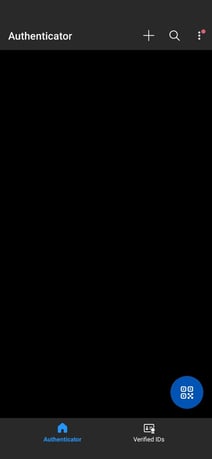
- Switch to Microsoft Authenticator. Tap +, then Other account (Google, Facebook, etc.), then Enter code manually (wording varies slightly by app version)
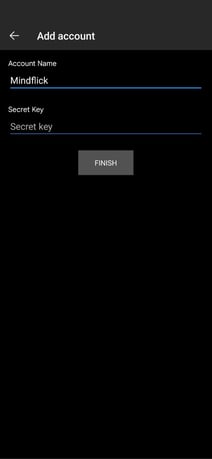
- Name the account (we recommend Mindflick) and paste the key into the secret key field, then save
- Switch back to your browser and select Continue
- Enter the 6-digit code Authenticator is now showing into the "Verify 2FA setup" screen
- Select Verify
If verification fails
The code refreshes every 30 seconds, so a delay between reading it and typing it is the usual cause. Check the app for the current code and try again rather than reusing an old one.